
Download MagicPrefs – Customizable Gestures for Magic Mouse
Overview
MagicPrefs is a powerful toolbar utility that unlocks the hidden potential of Apple’s Magic Mouse. While the stock driver gives you basic scrolling and click functions, many power users find the default configuration limiting—especially when it comes to multitouch gestures, middle‑click options, and advanced window‑management shortcuts. MagicPrefs steps in as a lightweight, real‑time control panel that adds a wealth of new gestures, customizable actions, and fine‑tuned sensitivity settings.
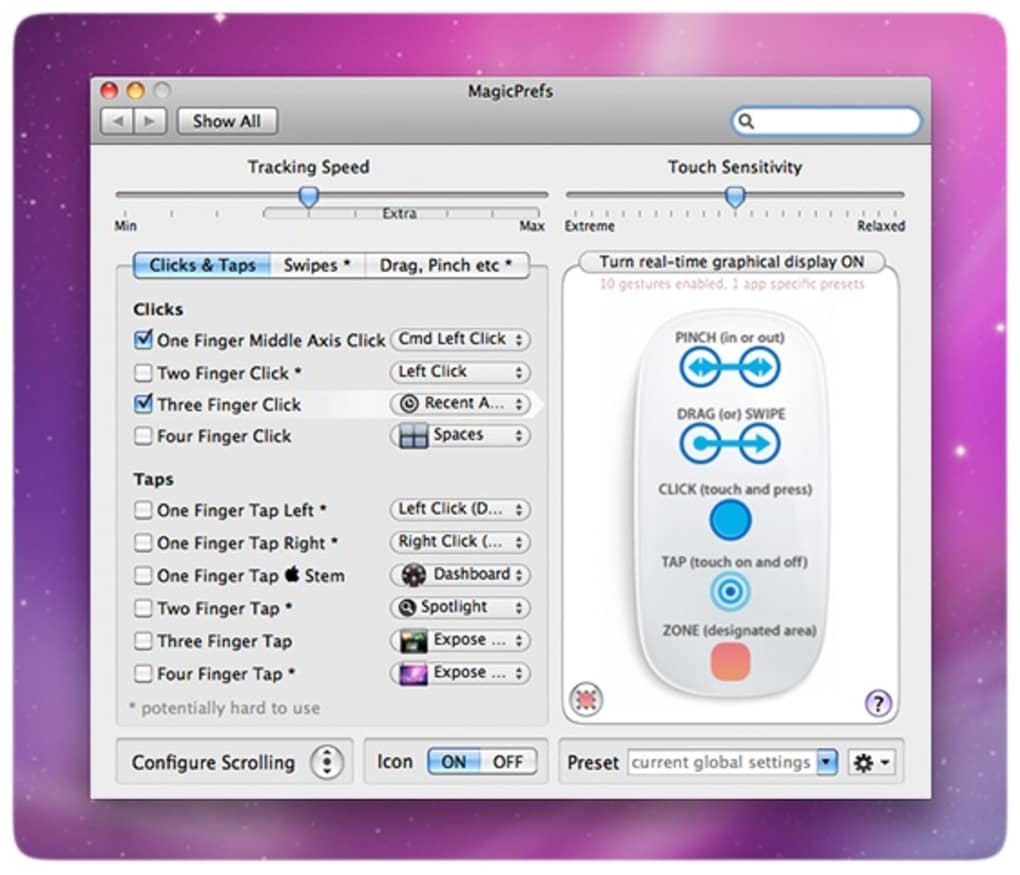
The app presents a clean interface where you can enable or disable individual gestures, adjust tap‑sensitivity, and even re‑map the mouse buttons to simulate keyboard modifiers like Shift, Ctrl, or Command. One standout feature is the “MagicMenu,” a pop‑up panel that displays every enabled gesture and lets you test them instantly on a visual representation of the mouse. Whether you need a quick way to invoke Spaces, Expose, or the Dashboard, or you simply want a faster tracking speed for precision work, MagicPrefs gives you the tools to tailor the Magic Mouse to your workflow.
The software is designed for macOS users who demand more from their hardware without resorting to third‑party hardware upgrades. With a trial version available and a modest one‑time purchase price, MagicPrefs offers a secure, regularly updated solution that integrates seamlessly with the native macOS environment.
Key Features
- Customizable Gestures: Add, edit, or remove up to 30 distinct multitouch gestures, including three‑finger swipes, double‑tap, and hold‑both‑buttons actions.
- MagicMenu Dashboard: Real‑time visual feedback showing finger placement and gesture response, helping you fine‑tune settings on the fly.
- Tap Sensitivity Slider: Adjust how hard you need to press the mouse surface for a tap‑to‑click, perfect for users with different finger pressures.
- Tracking Speed Boost: Increase cursor speed by up to 25 % without altering system‑wide settings, ideal for large monitors or high‑resolution displays.
- Button Re‑Mapping: Assign middle‑click, Shift‑click, or Ctrl‑click functions to combinations of left/right button holds.
- Spaces, Expose & Dashboard Access: Trigger macOS window‑management tools with simple swipes or button holds.
- Lightweight Toolbar: Runs discreetly in the menu bar, consuming minimal CPU and memory.
- Secure Updates: Automatic checks for the latest version ensure compatibility with new macOS releases.
- Trial & Free Version: Test the core features before purchasing the full license.
- Extensive Help Library: Built‑in tutorials and community forums help you master advanced gestures quickly.
Installation, Usage & Compatibility
Getting started with MagicPrefs is straightforward. Follow these steps to install and configure the app on your Mac:
- Download the Installer: Visit the official MagicPrefs website and click the “Download for macOS” button. The file is a signed .dmg package, ensuring a secure download.
- Mount the Disk Image: Double‑click the .dmg file to open it. Drag the MagicPrefs icon into your Applications folder.
- Launch the Application: Open MagicPrefs from Applications or use Spotlight. The first launch will prompt you to grant accessibility permissions—click “Open System Preferences” and enable MagicPrefs under “Security & Privacy → Privacy → Accessibility.” This step is required for the app to intercept mouse events.
- Configure Gestures: The toolbar icon appears in the menu bar. Click it and select “Preferences.” Here you’ll see a list of predefined gestures. Toggle any you want to enable, then use the adjacent dropdown to assign an action (e.g., “Show Desktop,” “Mission Control,” or a custom keyboard shortcut).
- Adjust Sensitivity & Speed: Use the “Tap Sensitivity” slider to set how light a tap can be before it registers as a click. Move the “Tracking Speed” slider to increase cursor velocity beyond the macOS default.
- Test in Real Time: Open the MagicMenu panel (⌥+M by default). As you place fingers on the mouse, the visual overlay highlights the active zones, letting you see exactly which gesture will fire.
- Save & Apply: Once you’re satisfied, click “Apply.” Settings are stored in a lightweight preferences file, so they persist across reboots.
Compatibility: MagicPrefs supports macOS 10.13 High Sierra and later, including macOS Ventura and Sonoma. It runs on both Intel‑based Macs and Apple Silicon (M1/M2) devices, thanks to a universal binary distribution. The app is not intended for Windows, Android, or iOS platforms, as it specifically leverages the Magic Mouse’s proprietary multitouch driver built into macOS.
Pros, Cons & Frequently Asked Questions
Pros
- Highly customizable gestures give power users unprecedented control.
- Real‑time visual feedback simplifies the learning curve.
- Lightweight, menu‑bar presence leaves system resources untouched.
- One‑time purchase eliminates recurring subscription fees.
- Regular updates keep the software compatible with new macOS releases.
Cons
- Initial setup can feel overwhelming for beginners.
- No native Windows version, limiting cross‑platform use.
- Advanced gestures may conflict with built‑in macOS shortcuts if not carefully mapped.
- Trial version disables some premium gestures and speed boost.
- Requires accessibility permission, which some security‑conscious users may hesitate to grant.
FAQ
Is MagicPrefs compatible with Apple Silicon Macs?
Yes. MagicPrefs is distributed as a universal binary, meaning it runs natively on both Intel and Apple Silicon (M1, M2, etc.) Macs without any performance penalty.
Do I need an internet connection after installation?
Only for checking updates. All core functionality works offline once the app is installed and the necessary permissions are granted.
Can I assign custom keyboard shortcuts to gestures?
Absolutely. MagicPrefs lets you map any gesture to a system‑wide shortcut, a specific app command, or a script, giving you flexibility similar to professional macro tools.
What happens if a gesture conflicts with a macOS shortcut?
MagicPrefs shows a warning icon next to conflicting assignments. You can either disable the system shortcut or reassign the gesture within the app to avoid interference.
Is there a free version of MagicPrefs?
A trial version is available for free, which includes most basic gestures and the tracking‑speed boost. To unlock the full gesture library and advanced customization, you’ll need to purchase the full license.
Conclusion & Call to Action
MagicPrefs transforms the minimalist Magic Mouse into a versatile productivity tool that rivals higher‑priced mouse alternatives. By offering deep gesture customization, real‑time visual testing, and performance‑enhancing features like tracking‑speed boost, it delivers a noticeable upgrade to everyday macOS navigation. While the initial learning curve may seem steep, the intuitive MagicMenu and comprehensive help resources make mastery achievable within a few sessions. If you’re frustrated by the limited default options of your Magic Mouse, investing in MagicPrefs is a cost‑effective way to reclaim control and speed up your workflow. Click the button below to download the trial, explore the feature set, and decide if the full version is right for you.
MagicPrefs ReviewAfter a week of daily use, MagicPrefs has become an indispensable part of my Mac setup. The ability to assign a three‑finger swipe to launch Mission Control saved me several seconds per task, and the tracking‑speed boost feels noticeably smoother on my 27‑inch 5K monitor. The only drawback is the occasional need to re‑assign a gesture after a macOS update, but the built‑in conflict warnings make it easy to resolve.







